Translating GenoPro in a Foreign Language
GenoPro has a built-in interface to make it easy for you to translate
(localize) the software in any language you want. With a few hours of
work, you can localize GenoPro in the language of your community. This
page explains how to translate GenoPro's menus, dialog windows and messages.
The
translation of the HTML reports is explained on a separate topic.
How to translate (localize) GenoPro?
The first step to translate GenoPro is to select the language you wish to
localize GenoPro. GenoPro will instantly display the translated menus
of the selected language. If you wish to translate a new language,
then you will see all the text in English, as no localization has been done
yet.
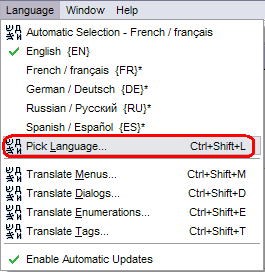
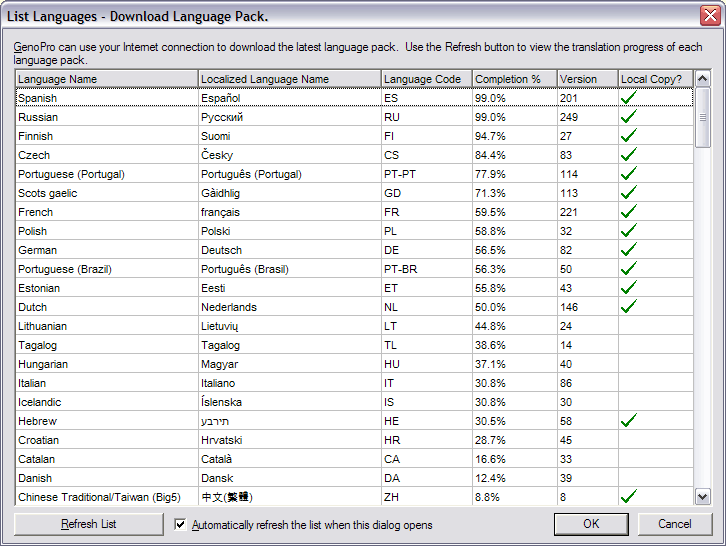
Pick Language Dialog
If you need assistance or have questions, feel free to
post your request on our translation forum.
Translating the Menus
The easiest place to start the localization is translating the menus.
If you press Ctrl+Shift+M (or select the menu item Translate Menus), you
will see a dialog to translate the menus.
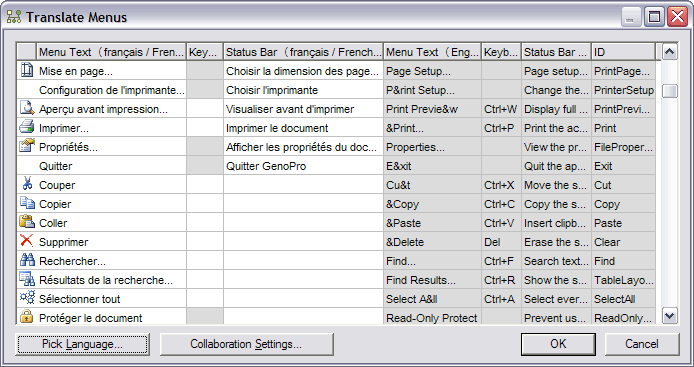
Translation of the menus
The first column(s) contain the text in your local language while the
columns on the right display the original text in English. This way,
you can instantly see what has been translated and what remains to be done.
Each menu item has two text entries: the Menu Text and the Status
Bar. The status bar is a short text description displayed at the
bottom-left of the screen when a menu item is highlighted or when the mouse
is hovering on a toolbar icon.
You may use the & character to designate an accelerator in your menu.
For instance, the text &Open will designate the letter O
as the accelerator (shortcut) to the menu command to open a file.
Translating the dialogs
Translating the dialogs (windows) is done by selecting the menu item
Translate Dialogs from the Language menu, or by clicking on the
top-right icon  .
Under Windows Vista and Windows 7 using the Aero effects (transparentcy), this icon may not be however if you click in the area where the icon should be displayed, GenoPro will bring the Translate Dialog. .
Under Windows Vista and Windows 7 using the Aero effects (transparentcy), this icon may not be however if you click in the area where the icon should be displayed, GenoPro will bring the Translate Dialog.
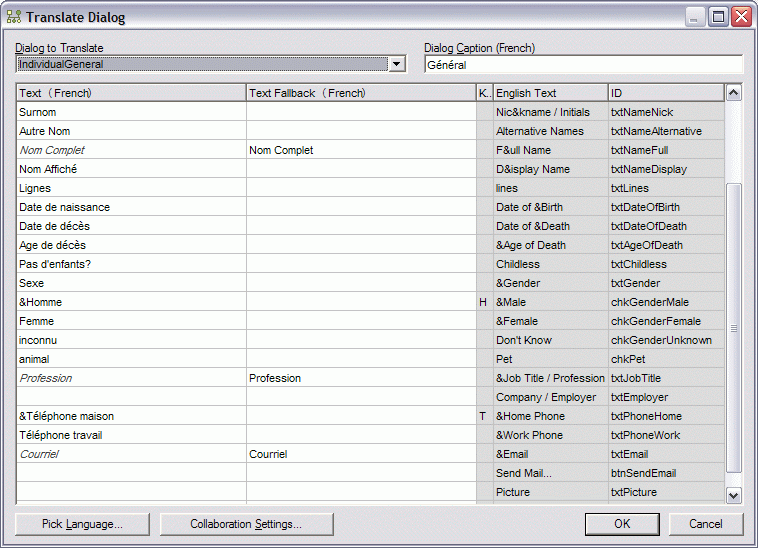
Translation dialog
Translating a dialog is a very straightforward step, on top you can select the dialog you want to translate, right beside enter the Caption of the dialog.

Text - Enter the translated value of the grayed English Text column.
Text Fallback - The fallback mechanism is used to avoid repeating the same value between dialogs.
A good example are the [Ok], [Cancel] button that are most of the time identical in all windows.
When you enter a value
in the fallback column this value will be used as default for any other controls with the same ID. If there is a value
present in both Text and Shared will be used.
Translating the Enumeration
Enumeration are lists of data that can be selected when filling the forms. For instances the Gender is a choice between Male,
Female, Pet or Unknown.
You can translated the enumeration like the rest of the application from the Tool - Language - "Translate Enumerations..."
Translating the Tags
Tags are values display in the Table Layout. Each tag has a name,
description and a shared text.
Collaboration Settings
Once you have translated a few entries, GenoPro will prompt you if you want
to upload your changes to the server GenoPro.com. This way, others may
benefit from your work and may complete the remaining translation. So
far, GenoPro has been localized in 28 languages, with the help of hundreds
of collaborators who made over 10,000 modifications on the server.
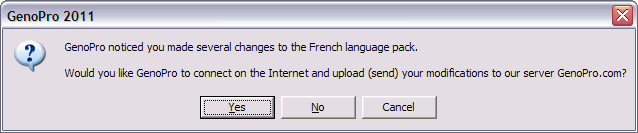
If you accept to upload your modifications on the server, GenoPro will ask
you to enter your email and password. This is optional, however it
helps us to know who did the translation and also give you a reward for your
work. You username and password is the same as any other GenoPro
service such as accessing the support forum,
sending a file to another user,
creating a backup and publishing your family
to http://familytrees.genopro.com.
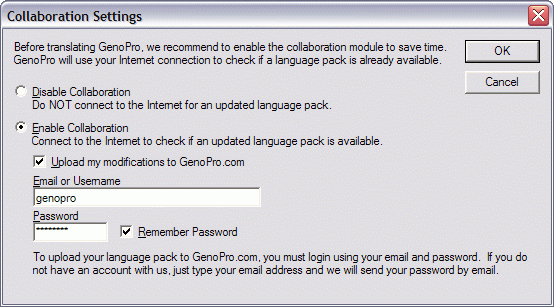
Collaboration Settings Dialog
To get the latest version of a language pack, select the English language
and the language you want to update. When you select a new language other
than English, GenoPro will attempt to download its most recent update.
* The % of completion is an estimate.
|