 Sending a genealogy file to another user
If you are a student
and your teacher has asked you to create a genogram with GenoPro as an
assignment, or if you are working collaboratively with other users on a
genogram, or if you simply want to share your work with another user, use
the Send feature for secure sending and storing of your data.
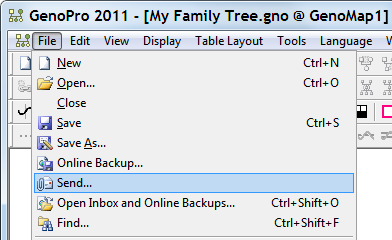
To send a file to another user, use the Send command from the
File menu.
In the Send File dialog, enter the email (or username) of the
destination recipient you wish to send your GenoPro file. You need
also to provide your own email address and password. If you do not
have a password, the server will create a password for your GenoPro account
and send it to your email address.
| | | |
If you need to send your file to GenoPro for customer support, just enter GenoPro in the To field as displayed in the following screenshot. | | | | |
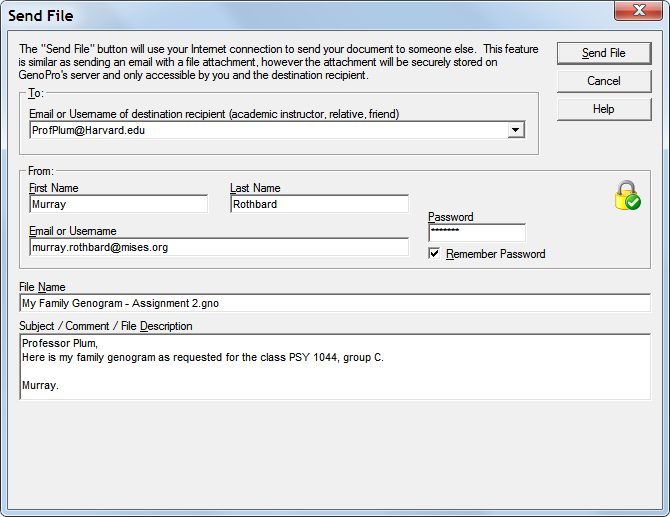
Dialog to Send a File to a User
When you click on the Send File button, GenoPro will upload your .gno
file to the server GenoPro.com. The server will store the .gno file
into the recipient's inbox,
and then send an email message to notify the recipient a new GenoPro file is
available.
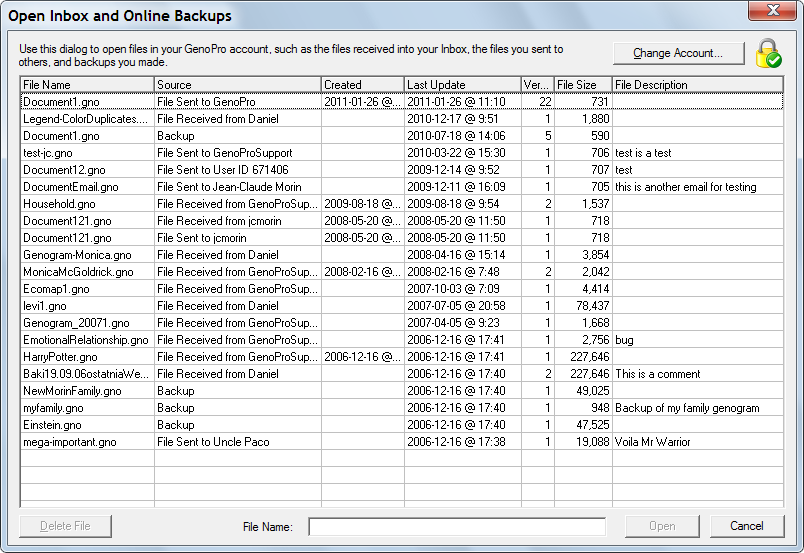
Downloading the .gno File
If you do not wish to use the GenoPro Inbox,
you may download the .gno file directly from the email message. Each
email message contains a link to download the GenoPro file directly.
Read More:
|