How to create a medical genogram
A medical genogram, is a special type of genogram that includes graphical representations of medical
conditions, such as: age, cause of death, hereditary traits, and any additional
information that can be used to access disease risk.
First Step
To create a medical genogram, you must first determine which genetic diseases you wish to include. Options include:
heart disease, cancer, diabetes, Alzheimer’s disease, thyroid disease, certain birth defects, alcoholism, depression
and schizophrenia. Remember that you can always add more diseases later or change the symbols to reflect your current needs.
Also note that new in GenoPro 2020 we have a brand new Medical history panel which can be used to record more specific
history of medical conditions and tests of individuals.
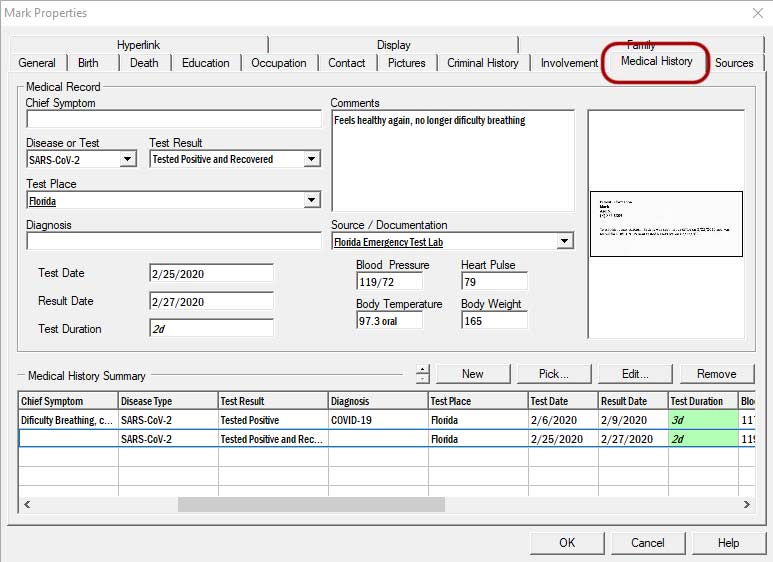 Medical history panel, new in GenoPro 2020
In the new medical history panel, you can record a history of of symptoms, tests, vital signs, comments, diagnosis,
source documents, and photos.
Included is also a very helpful medical history table view which allows you to view the medical history of multiple
people at the same time and sort the data in any way that you may find it helpful.
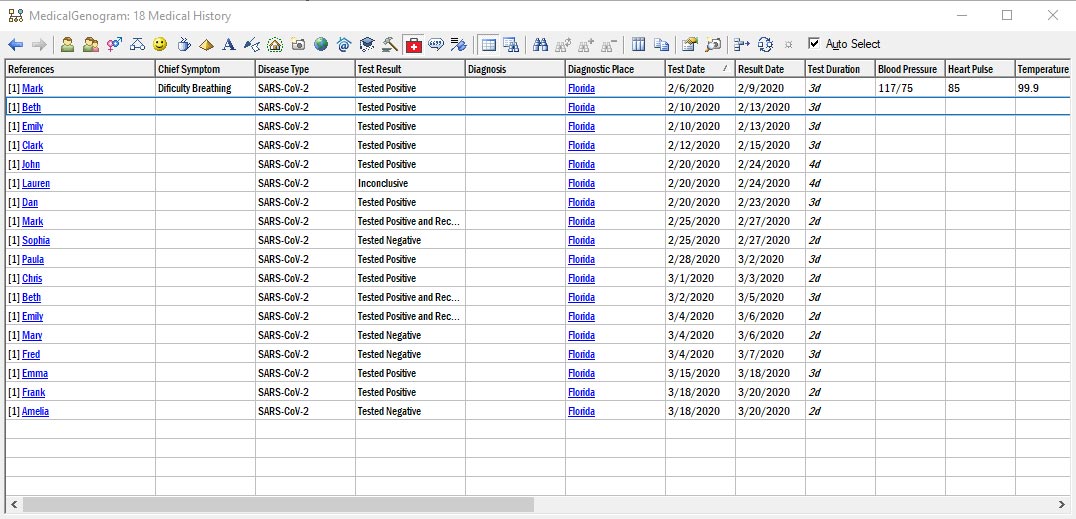 Medical history table, new in GenoPro 2020
Also new in GenoPro 2020, we now have specific symbols that show up on the Genogram related to the Medical History
Panel, which can be used to track infectious diseases such as COVID-19 and how they have spread, and who has not been tested.
This information combined with additional health information described later can help asses the people who are at higher
risk.
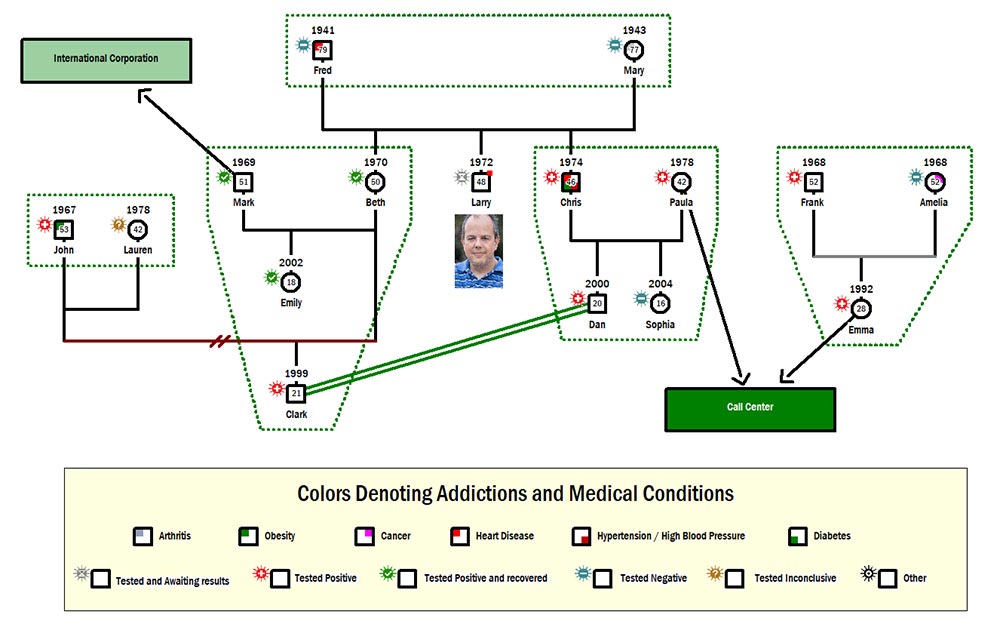 Icon labels that help track infectious diseases testing and results.
If you wish to learn more about the new features, click here.
Second Step
The next step is to create a legend so that genograms can be read and interpreted
systematically like an electrocardiogram. Right-click on the document and select New Legend – Common genogram symbols
 .
This will insert a new legend that you can work with to create your customized legend.
.
This will insert a new legend that you can work with to create your customized legend.
Double-click on the first individual; the properties window will appear. Give the individual a name such as Heart
disease. Next, select the Display tab.
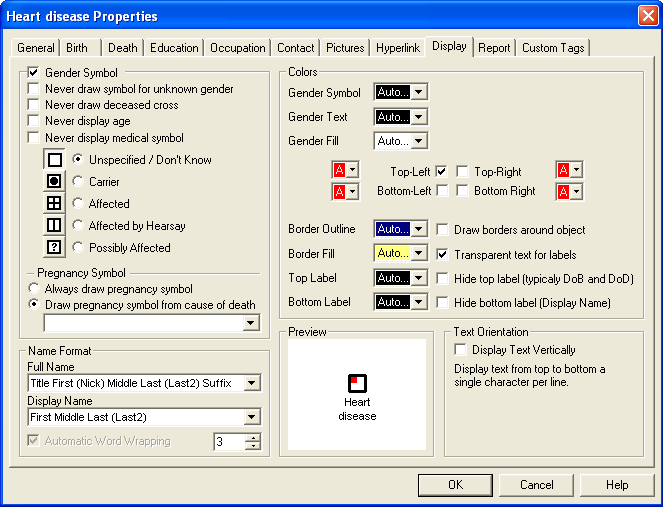 Display option for an individual
In this tab, select the color and the corner of the fill associated with the selected disease. In this case, heart
disease is represented by a red square in the top left corner. You may use any combination of colors within the
individual gender sign to make each disease unique. You can also change the color of the symbol or the text to make
them represent a health condition. Check the “Transparent text for label” to avoid having a white background on your
text in the legend.
Also, be sure to verify that the "Make label / Exclude from report" box is
checked at the top of the Family tab. This will prevent the inclusion of the legend objects in your family report.
Continue to assign a color code to each of your selected diseases by adding in individuals as needed in your legend.
Once your legend is completed, be sure to save a copy of your legend for future documents. Here is an example of a
medical genogram legend:
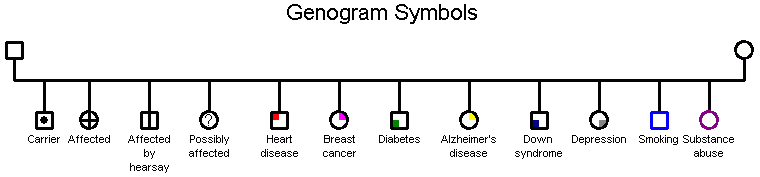 Medical genogram symbols examples
The next step is to create a family by invoking the  Family wizard. You can also add in medical information to the genograms you have already created. Once you have
entered the family, click on individuals to add in the color codes corresponding to their disease(s). Use the
“Carrier/Affected/Affected by hearsay/Possibly affected” features to specify the nature of the disease or condition.
Family wizard. You can also add in medical information to the genograms you have already created. Once you have
entered the family, click on individuals to add in the color codes corresponding to their disease(s). Use the
“Carrier/Affected/Affected by hearsay/Possibly affected” features to specify the nature of the disease or condition.
This is an example of a three-generational medical pedigree:
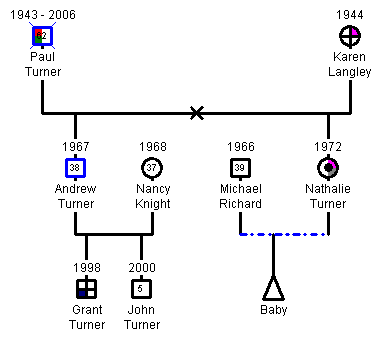 Medical genogram symbols examples
In this family, Paul, a smoker, recently died of a heart attack after years of battling with heart disease and
diabetes. His wife Karen has been diagnosed with breast cancer. Nathalie is pregnant, and she is worried that she
may have a breast tumor. The anxiety she feels has affected her mental health, and she is also dealing with
depression. Meanwhile, Andrew is also a smoker, and his 8-year-old son has Down syndrome.
Once you are familiar with the different color codes you have created, you will be able to read genograms in a
matter of seconds, be able to understand the family risks for certain diseases and come up with strategies for
screening, diagnosis, and management.
Drawing Medical Pedigrees
GenoPro can draw medical pedigrees, used mostly by physicians. To enable medical pedigrees,
select Display all Symbols for a Medical Pedigree from the
View menu. The differences between a genogram and a medical pedigree are modest:
- A deceased individual is displayed by a single diagonal line rather than an X.
- A child of unknown gender is displayed by a diamond rather than a question mark (?).
- An adopted child is displayed in square brackets.
 GenoPro displaying a medical pedigree
Previous: Emotional Relationships in Genograms
Next: Family Systems Theory